Thursday, August 30, 2018

FVDI J2534 download and install on win7 8 10

FVDI J2534 features in Ford Mazda IDS diagnosis and online module programming, meanwhile it is tested OK to work with Ford IDS V110, Mazda IDS V108, Toyota TIS V13.00,
Honda HDS V3.102, Land Rover/Jaguar SDD2 V153, Nissan CONSULT III plus R2R V80.11. It is fullly compatible with SAE J2534-1 and partly compatible with SAE J2534-2.
It is better than many J2534 interfaces.

FVDI J2534 Interface package:
The USB is for communication with the computer, the CD is packed with driver.


Compatible software for J2534:
Ford IDS V110
Mazda IDS V108
Toyota TIS V13.00
Honda HDS V3.102
Land Rover/Jaguar SDD2 V153
Nissan CONSULT III plus R2R V80.11


FVDI J2534 software & driver Installation on win7:
USB communication
OS: Win7(64bit), Win8, win10
CPU:  Pentium 3/1GHZ~ Pentium4/1.8GHZ or above
Memory(RAM): 256M ~ 512M or above
HDD: 40G ~60G or above
Display: 800×600 ~ 1024×768 or above
USB interface: One or more

Note: The compatible software can’t be installed in the same computer.

1.Browse http://flyobd.com/shop/download-center/, register a member and login to download the compatible software that you need i. Ford IDS.
fvdi-j2534-install-01
  1. Copy the driver in the packed CD and paste it to the computer.
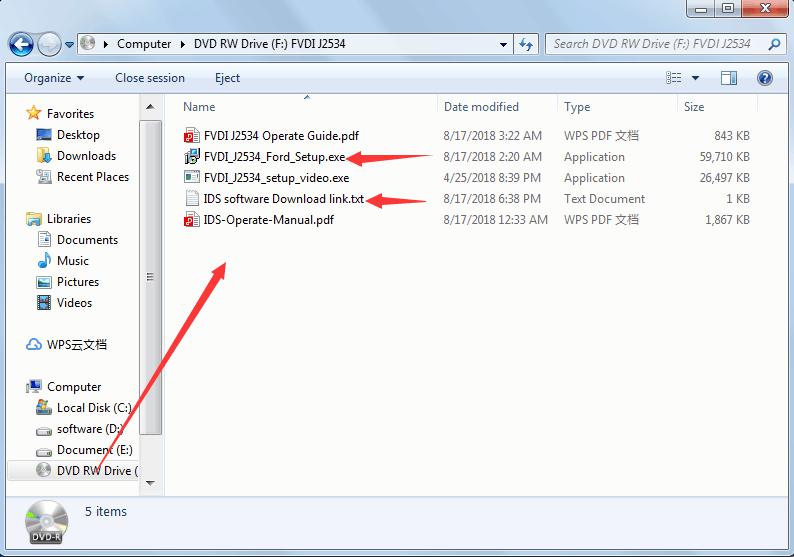
fvdi-j2534-ids-install-02

  1. Install the driver and then FVDI J2534 software.
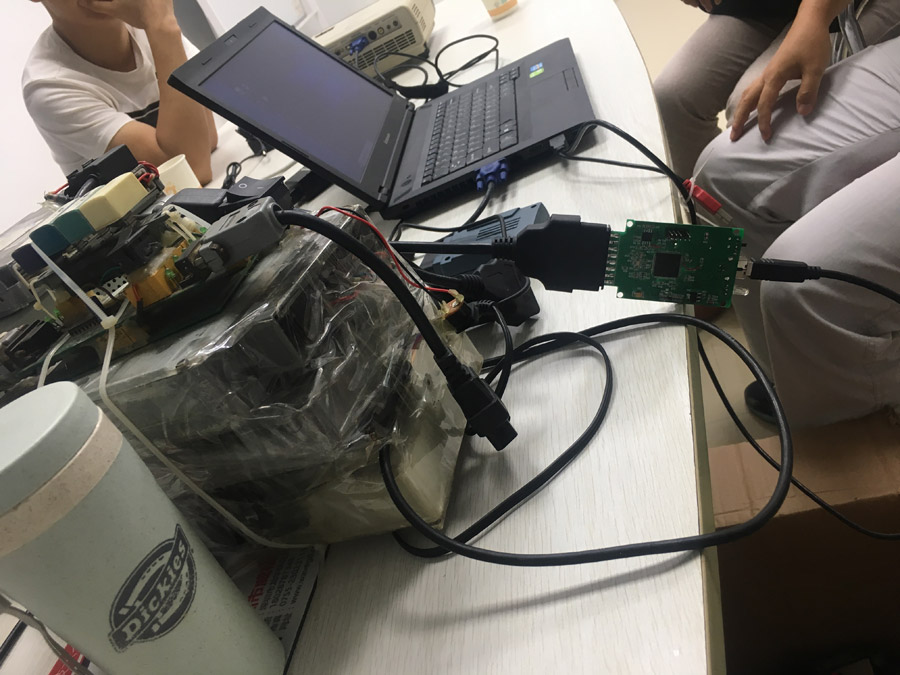
Take IDS for example.
fly-fvdi-j2534-connection
1): Install the latest release IDS software
Double-click the “IDS-110.01_Full.exe” to start installation
Select language, and click “next” button
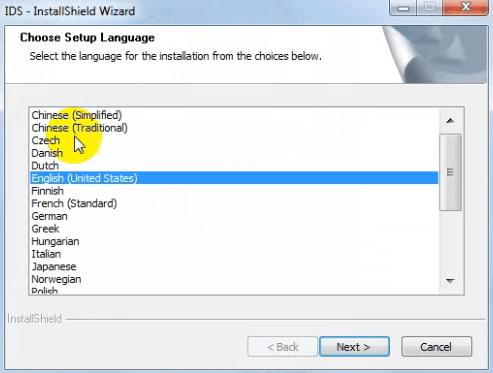
fvdi-j2534-ids-install-03

Wait a while, and the following windows will pop out, click “Yes”, then click “next”
fvdi-j2534-ids-install-04 fvdi-j2534-ids-install-05

Select “i accept the terms of the license agreement”, and then click “next”, and then
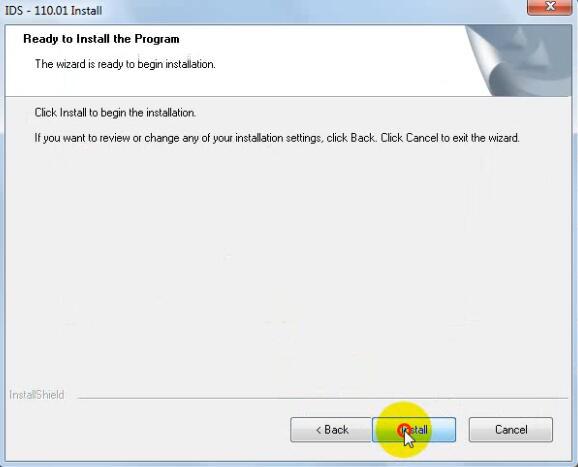
click “next”, and then click “install”. The installation process will take some time, please
wait patiently.
fvdi-j2534-ids-install-06 fvdi-j2534-ids-install-07 fvdi-j2534-ids-install-08

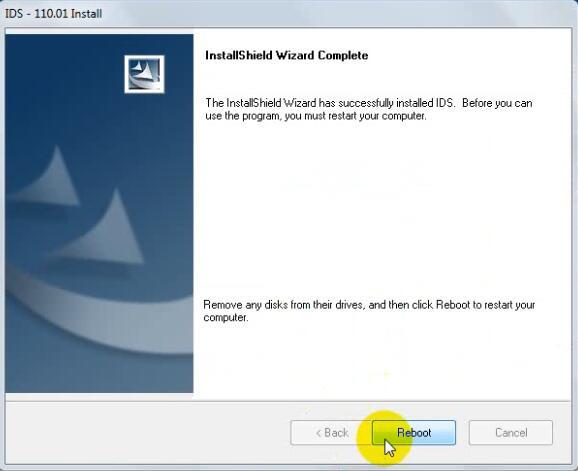
Reboot your computer after installation
fvdi-j2534-ids-install-09

2): Install the FVDI J2534 software
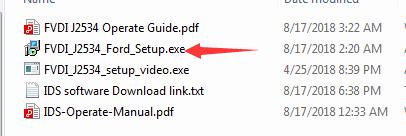
Open compact Disc and find FVDI-J2534 software and double-click the
“FVDI_J2534_Ford_Setup.exe” software
fvdi-j2534-ids-install-10

Select Setup Language and Click “Ok”.
fvdi-j2534-ids-install-11


It will install SVCI Based software list, Click “next” directly, and then Click “next” all the
time until it jump a window “Select Setup Language”, which is selected the device
driver’s installation language.
fvdi-j2534-ids-install-12 fvdi-j2534-ids-install-13

Install the device driver, and click “Next” all the time until install Shield wizard complete,
and then click “finish”.
fvdi-j2534-ids-install-14 fvdi-j2534-ids-install-15

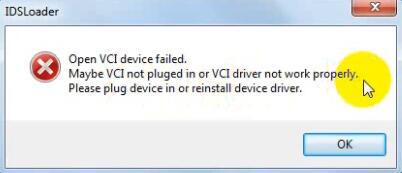
When you open FVDI J2534 for ford software after installation, an error window will pop
out. That means you have not connect FVDI J2534 equipment with your computer, as
show in the below. connect your device with computer, and the FVDI J2534 software will
be opened normally.
fvdi-j2534-ids-install-16

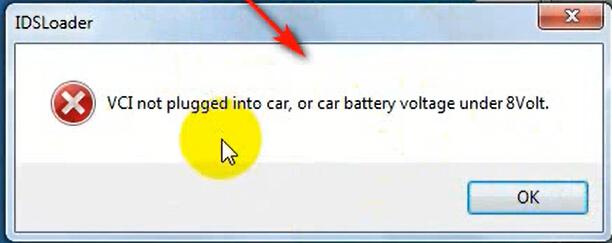
When you put FVDI J2534 equipment to connect the computer and open the software,
it will pop below error message, it means you do not connected vehicle ECU module and
the ECU voltage cannot less than 8 volts. After using the OBD interface of FVDI J2534 to
connect the ECU, and the software can be opened normally and put into use.
fvdi-j2534-ids-install-17

Note: Cannot open the IDS software on the desktop directly, it is recommended to delete
the IDS software shortcut on the desktop.

Source: http://www.uobdii.com/wholesale/fvdi-j2534.html

Monday, August 13, 2018

CGDI MB Prog Customers Frequency Questions

Question: Where to buy CGDI MB tokens?
Answer: Buy token here:
http://www.cgdishop.com/wholesale/cgdi-prog-bmw-msv80-car-key-programmer.html
  1. CGDI Prog MB can calculate the password twice free each day for the first 180 days (from the day you activate device)
    2. It will cost usd70 for another 180 days tokens, please pay to Tokens for CGDI Prog MB Key Programmer. After you pay for it, can calculate online two times per day too. (to get new authorization for tokens, it will take about 12hours after you pay usd70 to us)
    3. If you have CG100 PROG III Airbag Restore Devicesand CGDI Prog BMW MSV80, pls pass us serial number to bundle them together, you will have two more tokens, which means 4 free tokens per day.
    And if you have CGDI Prog BMW MSV80 only, we can bundle with your CGDI MB too to have one more token per day, which means 3 free tokens each day.
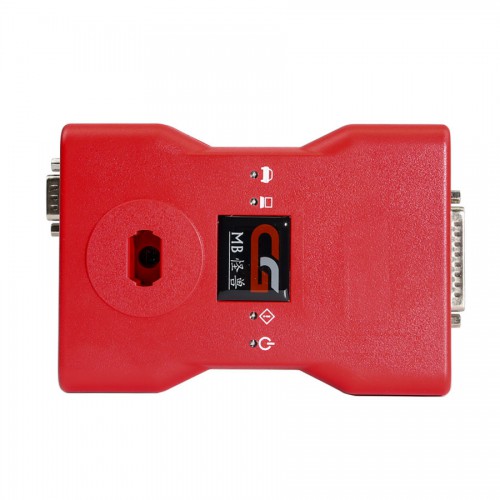
 CGDI MB
Question: Where to download CGDI MB newest update?
Answer: You can download from here:
http://www.cgprogcar.com/en/?c=list&cs=xiazaizhongxin
CGDI MB Mercedes Benz Key Programmer Newest Update Info (2018-06-02):
1). Add ELV emulator function: support one-click unlock / read & write data / read password.
2). Add ELV password writing directly without erasing EIS and synchronize.
3). Add OBD mileage reset function for the following cluster types:
C(W204) / GLK(X204) / CLK (207) / E(W212) / SLS (197) / CLS (W218), R-Class (W251) /GL(X164) /ML(W164), E-Class (w211) /CLS(W219), S-Class (W221) /CL(216), C-Class (W203) / CLK(W209), SLK(R171).
4). Add the gateway EE /Flash OBD reading and writing for the following gateway types:
C_Class_W204, E_class_W211, E_class_w212, CLK_X204, CLK_W207, SLS_W197, CLS_W218, M-Class_W164, R_class_W251, Slk_R171, GL_X164, S_class_W221, CL_W216.
5). Add the non-HC05 EIS format file and the original data type save function, so that you can complete modifying the Mercedes EIS data by clicking one button.
6). Fix the problem that a partial BE keys fail to read after writing.
7). Add a button to clear the fault code.
8). Fix the problem that a partial changing gear can’t be erased.

Question: what Mercedes Benz models can CGDI MB work with?
Answer: Please read this feedback:
http://www.cgdishop.com/wholesale/cgdi-prog-mb-benz-car-key-programmer.html

Here all CGDI MB operation video on Youtube:
https://www.youtube.com/channel/UC7T5SMnxQEwT01eK0QuhpQw

Q: Can it supports all keys lost?
A: Yes
– test all keys lost on w164 need gateway.
– Tested w212 ALL KEY LOST !!! In car, done by OBD
Work really good!
W212 is from 2012
Read ezs About 30mins
Upload data
Querry
Password given
Read eis info
Paste key password
Save
Then key calculation
– CGDI MB tool works good to do W207 W204 lost keys on bench.
W204 get data: About hour
PSW W204: 11minute all key lost in bench with VVDI cable
had VVDI and CGDI,CGDI is faster and no problem to get PSW:
– W203 with W209 EZS all keys lost, done in the car about 70mn: Successful.
– Calculation PSW always the first time, never fail.
-Plug USB to computer, software recognizes at once. So I take 2 used BE key put in and read. Software say need 12V.
So I plug 12V and read and reset to unused quickly. Will test on bench W209 as key lost later.
and more……
http://www.cgdishop.com

Tuesday, August 7, 2018

How to Cut TOY43 Key using Xhorse Condor XC-Mini Find Bitting

This article will teach you how to use Xhorse Condor XC-Mini cut keys if parts of the car are missing bitting on door lock/trunk lock/ignition lock.

SEC-E9 Cutting Machine
For more about key cutting machine,please visit:
http://www.keycuttingmachine.org

Step1: Select Car information
Connected to the power supply, open Condor XC-MINI
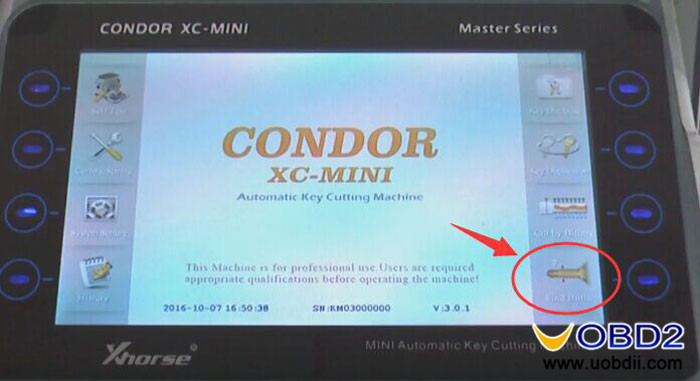
Enter main interface, Click on ‘Find Bitting’
xhorse-condor-xc-mini-find-bitting-1
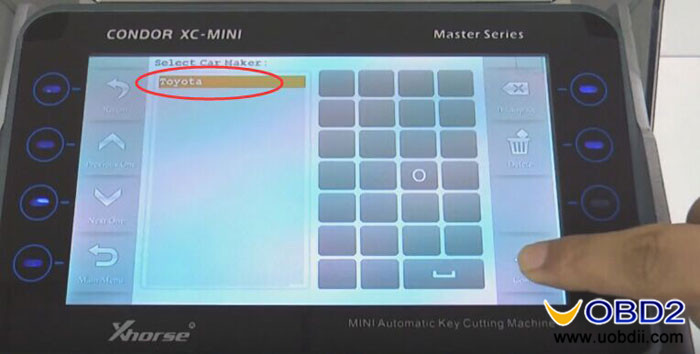
Select car maker ‘’Toyota’
xhorse-condor-xc-mini-find-bitting-2
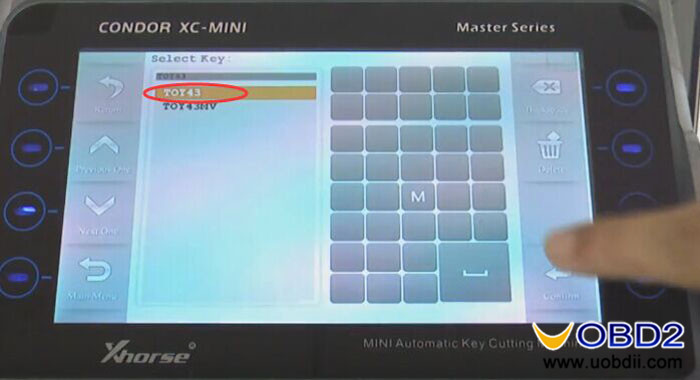
Enter ’TOY43’ and click on ‘Confirm’
xhorse-condor-xc-mini-find-bitting-3
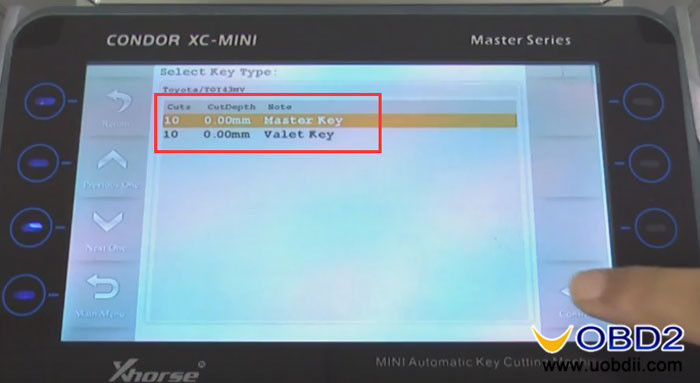
Select key type and click on ‘Confirm’
xhorse-condor-xc-mini-find-bitting-4
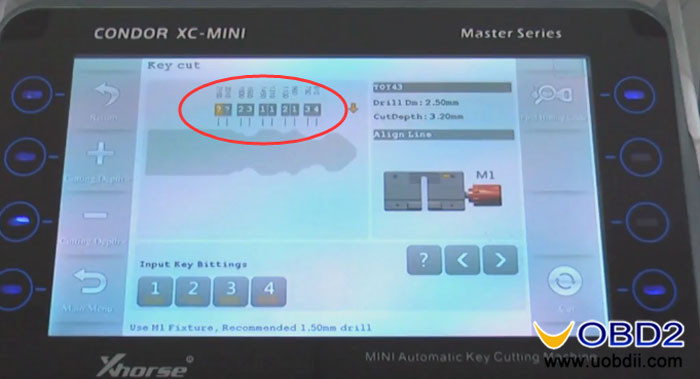
Enter known bitting ‘23112134’
Enter unknown bitting as ‘?’
xhorse-condor-xc-mini-find-bitting-5
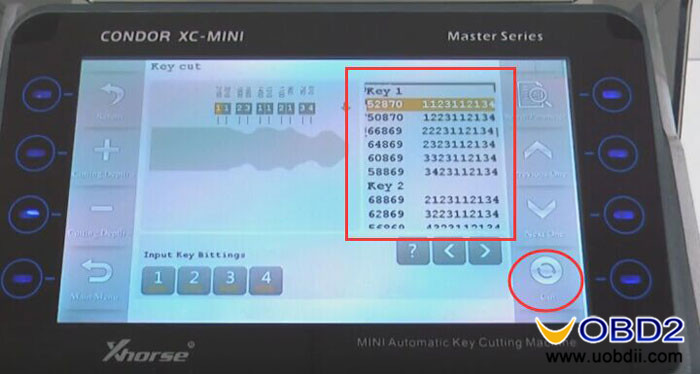
(Possible key bitting will be listed. Note that system has sorted the codes by the most
economical way in order to save blank keys. For example, the bitting under ‘First key’ only
needs three blank keys, the bitting under “Second Key” need another three blank keys, then the ‘third Key’…)

Step2: Prepare Key
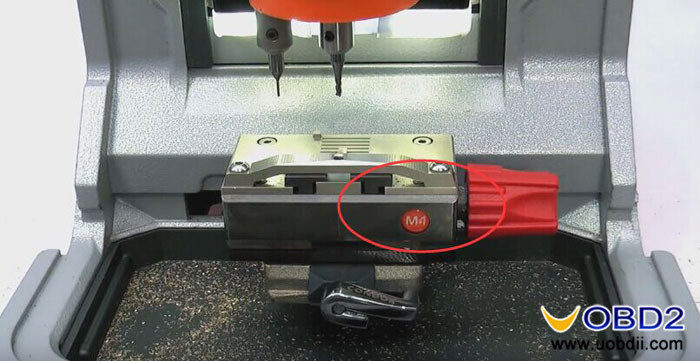
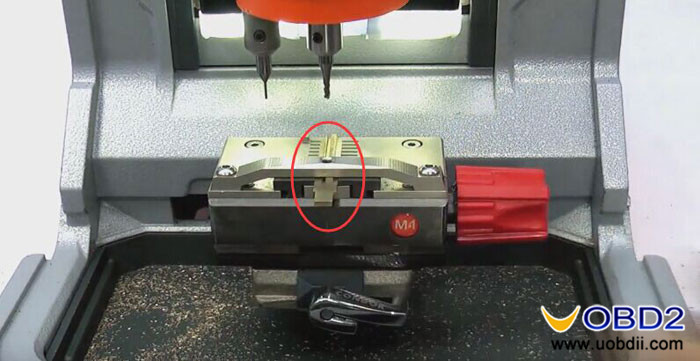
Then push M1 clamp and tighten the clamp lock
xhorse-condor-xc-mini-find-bitting-6
Next put the blank TOY43 key on the M1 clamp and tighten it
xhorse-condor-xc-mini-find-bitting-7
Close the protective shield

Step3: Begin cutting
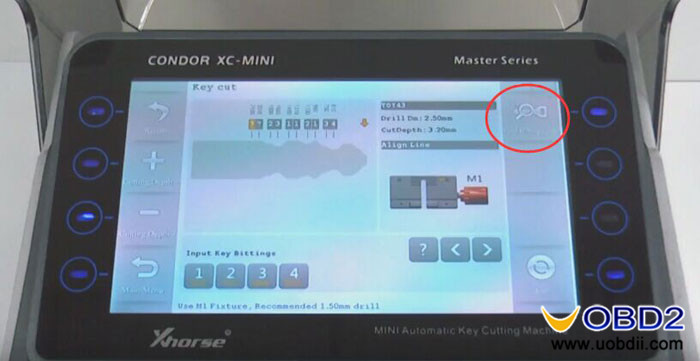
Click on ‘Find Bitting Code’
xhorse-condor-xc-mini-find-bitting-8
And click on ‘Cut’
xhorse-condor-xc-mini-find-bitting-9
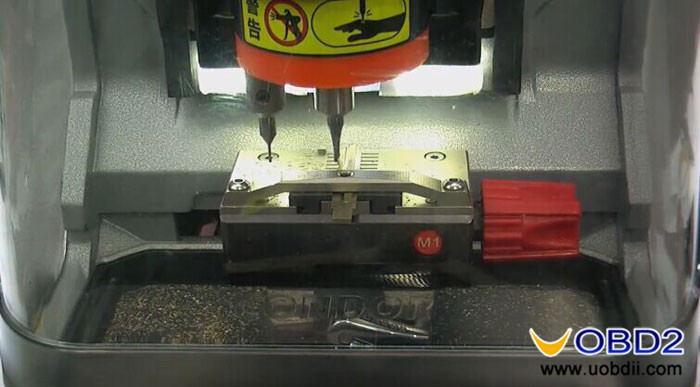
It is processing…
xhorse-condor-xc-mini-find-bitting-10
Cutting complete!
xhorse-condor-xc-mini-find-bitting-11
You can clean up the clamp, probe and the cutter using the brush.

Condor XC-MINI