Showing posts with label Foxwell NT530. Show all posts

Monday, August 12, 2019

Foxwell NT530 Diagnostic tool Scan Vehicle

When you completed the Foxwell NT530 Scanner identification of vehicle, you have to identify the control modules installed in the vehicle. More automobile diagnostic tool,visit our website:OBD2 tool


Quick Scan
Quick Scan performs an automatic system test to determine which control modules are installed on the vehicle and provides diagnostic trouble codes (DTCs) overview. Depending on the number of control modules, it may take 10 minutes or longer to complete the test.


To perform an automatic system scan:
1. Scroll with the arrow keys to highlight Quick Scan from the menu and press ENTER to start.

2. To pause the scan, press the function key corresponding with Pause on the screen.

3. At the end of successful automatic controller scan, a menu with a list of installed controllers together with their DTC overview displays.

4. If there is diagnostic trouble code(s) detected in a control unit, press the function key corresponding with Report on the screen to view details of code information. Or press the function key Erase to clear them.

5. Press function key F1 to save the trouble code information.
6. Select the system you would like to test, and press the ENTER key. When the scanner has established connection with the vehicle, the Function Menu displays.
Figure 5-5 Function Menu screen


More detail of Foxwell NT530,please check here:

http://www.uobdii.com/wholesale/foxwell-nt530-scanner.html
Article from:http://chasencai.over-blog.com/2019/08/how-to-use-foxwell-nt530-scan-vehicle.html

Wednesday, July 17, 2019

How to Use Foxwell NT530 to identify Vehicle VIN?

Here UOBD2 show you the guide on how to use Foxwell NT530 to identify vehicle identify number.


How to use the Foxwell NT530 scanner to identify the specifications of the vehicle under test.The vehicle identification information presented is provided by the ECM of the vehicle being tested.Therefore, certain attributes of the test vehicle must be entered into the scan tool to ensure the datadisplays correctly. The vehicle identification sequence is menu driven, you simply follow the screen prompts and make a series of choices. Each selection you make advances you to the next screen.Exact procedures may vary somewhat by vehicle. It typically identifies a vehicle by any of thefollowing means:
SmartVIN
Manual selection


Foxwell NT530 Smart VIN Mode:
Smart VIN allows to identify a vehicle by automatically reading the vehicle identification number (VIN).
To identify a vehicle by SmartVIN:

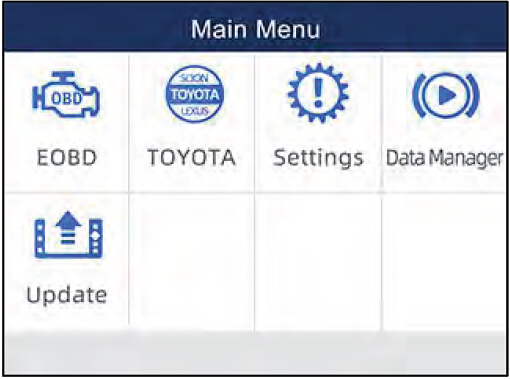
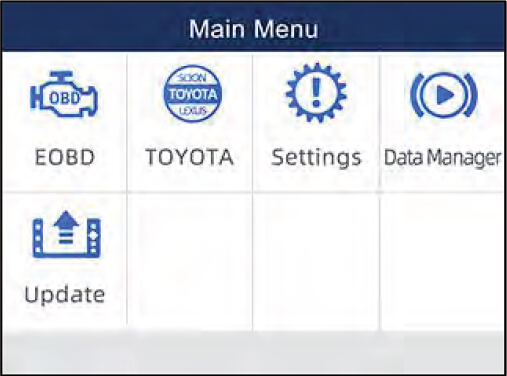
1. Scroll with arrow keys to highlight the vehicle application from main menu and press ENTER.


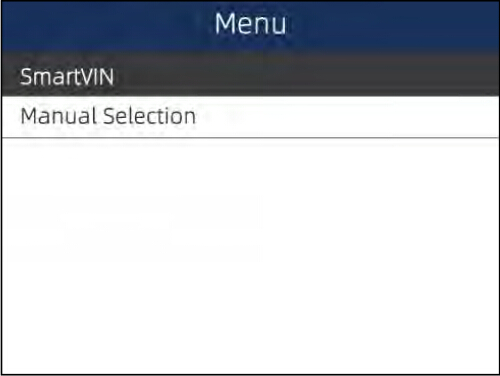
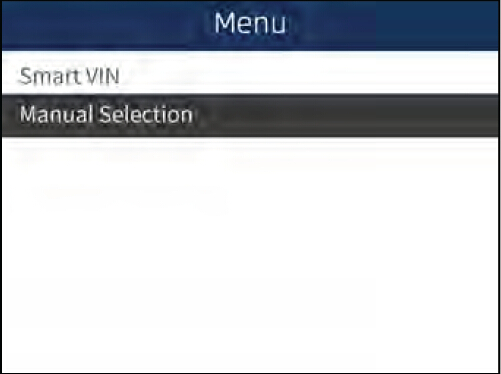
2. Select SmartVIN from the menu, and press the ENTER key.


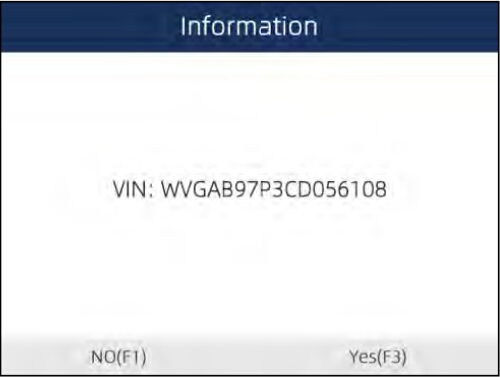
3. The scan tool starts to communicate with the vehicle and read the Vehicle Specification or VIN
Code automatically.


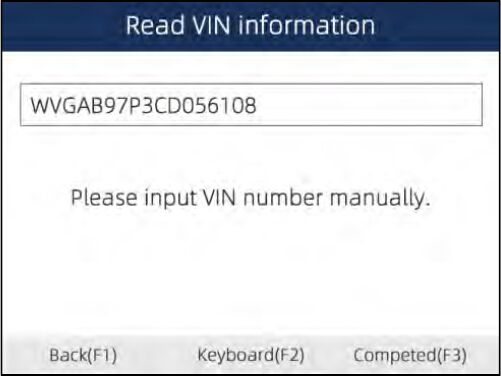
4. Answer YES if the Vehicle Specification or VIN code is correct and a menu of controller selection

displays. Answer NO if incorrect, and you are required to enter the correct VIN number manually


Foxwell NT530 Manual Selection

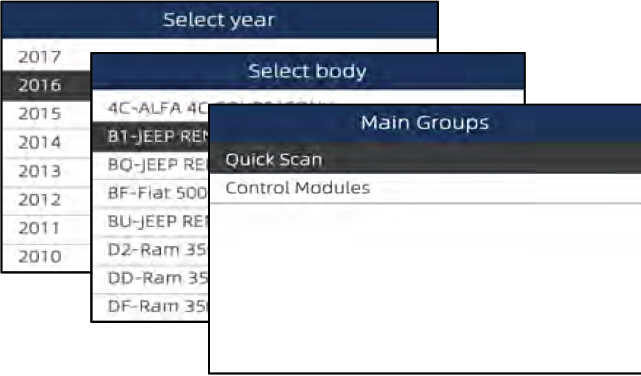
Manual Selection identifies a vehicle by making several selections according to certain VIN characters, such as model year, and engine type.

To identify a vehicle by manual vehicle selection:

1.Scroll with arrow keys to highlight the vehicle application from main menu and press ENTER.


2.Select Manual Selection from the menu, and press the ENTER key.


3.On each screen that appears, select the correct option and then press the ENTER key. Do this until the complete vehicle information is entered and the menu of controller selection displays.


http://www.uobdii.com/wholesale/foxwell-nt530-scanner.html